Vizard 8 » Reference » Avatars » Avatar basics
8.3.1

Avatars are 3D models that can change their shape with animations. Often, people use avatars to simulate humans who can perform animations such as walking, falling down, or twiddling their thumbs. Vizard comes with several avatars which have a number of animations. It's also possible to create your own avatars with animations for use in Vizard by modeling programs and by a Motion Capture system.
Vizard comes bundled with the 4 avatar samples shown below.
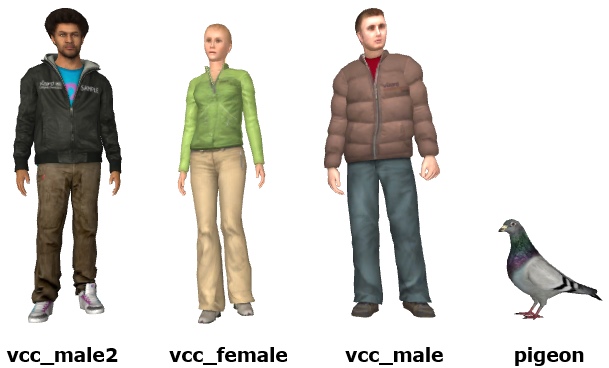
Vizard uses the Cal3D format for avatars. Cal3D exporters are available on the Worldviz website. See the Cal3D Workflow guide for exporting avatars from 3ds Max.
To create an avatar for Vizard it must be exported from a modeling program in the Cal3D (Character Animation Library) format. A Cal3D avatar has four parts:
An avatar's built-in animations are coded into the avatar file and are used to trigger avatar limb movements created in modeling programs. Built-in animations can be used to make an avatar walk, stand idly, sit down, or any movement created in character animation software. An avatar's animations are listed in the resources window. When changing animations Cal3D has the ability to blend limb movements so the avatar does not instantly jump into a new pose.
If you want an avatar to repeat an animation over and over, set its state. You access animations by their index, or the number next to their name in the resources view of the avatar.
To run an animation once, you execute the animation.
You can modify the movement of avatar limbs within Vizard script by manipulating the avatar's bones. To move a bone, get a handle to the bone, lock the bone and rotate the bone the desired amount.
|
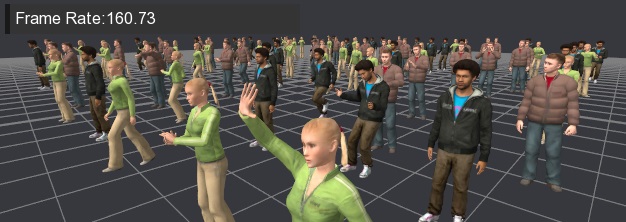
| GeForce GTX 560 rendering 100 avatars using hardware skinning |
Hardware skinning is a rendering technique that performs the mesh deformation of the avatar on the GPU using shaders, instead of on the CPU. It can drastically improve rendering performance of avatars on modern graphics hardware. Depending on the GPU and avatar complexity, it can allow hundreds of avatars to be rendered at real-time frame rates.
Vizard comes with built-in support for hardware skinning. Hardware skinning will automatically be enabled when shader effects are generated on the avatar using the vizfx module:
While hardware skinning should work in most cases, there are a few limitations to be aware of:
The GPU must support GLSL shaders and Vertex Buffer Objects (VBOs).
Morph targets are not supported. Applying a morph target will automatically force the avatar to fallback on CPU skinning.
Each vertex only supports being influenced by up to 4 bones. If a vertex is influenced by more than 4 bones, then only the 4 highest weighted bones will be used during hardware skinning.
If needed, hardware skinning can be disabled using the viz.HARDWARE_SKINNING flag:
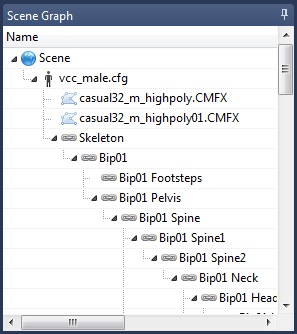
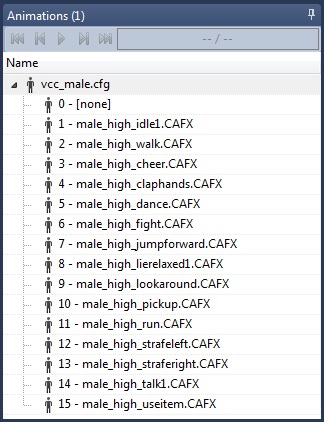
You can view various information about an avatar by opening the file in Inspector.
The avatars skeleton hierarchy will appear under the Skeleton section in the Scene Graph pane (as seen below):
The avatars animations will be listed under the Animations pane (as seen below):
\examples\avatar\linkbones.py
\examples\avatar\motions.py
Tutorial: Animating Avatar bones -- Tutorial for performing actions on objects.
Tutorial: Animating Avatars -- Tutorial for performing actions on avatars.