Vizard 8 » The Vizard IDE » Vizard workbench
8.3.1

The workbench refers to the standard collection of graphical and scripting tools available to Vizard users. The picture below is a typical view of what the workbench looks like.
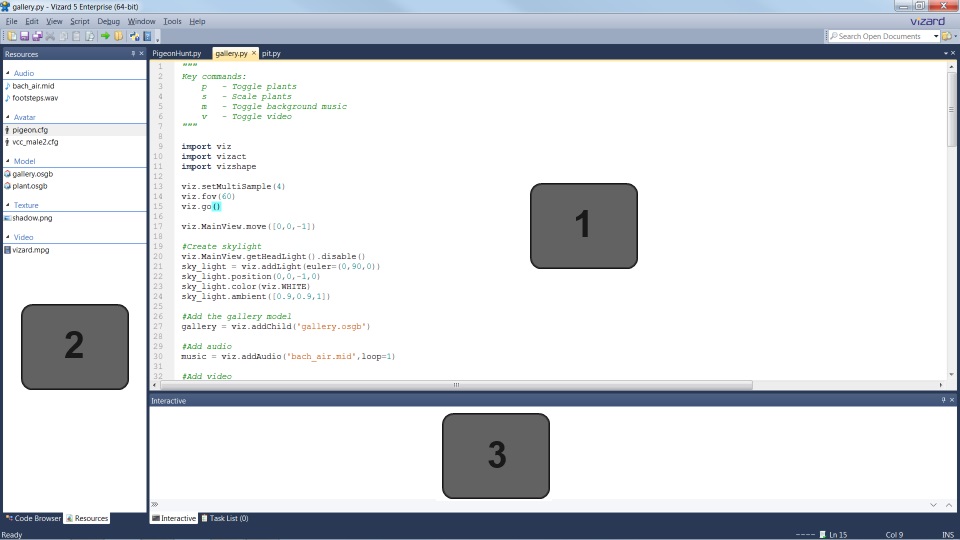
Use the Vizard editor to edit python files (.py) and some common text file formats (.txt, .html).
To open a new Vizard script go to File > New Vizard File or use the Ctrl + N keyboard shortcut.
To load a saved file do one of the following:
To move between active files in the editor do one of the following:
Use Ctrl + Page Up/Down keys to select the previous/next tab
To run the active script do one of the following:
 on
the main toolbar
on
the main toolbarClick on the tabs to toggle between the Code Browser and Resources panes. The Code Browser pane displays a hierarchical overview of all the functions and classes within the current script. Double click an item in the browser to jump to the definition location in the editor. This is a useful tool for quickly navigating around large files. The Resources pane lists all the media files referenced by the script. Double click a model, avatar, or texture resource to view it in Inspector.
The Interactive Window gives you direct access to the Python interpreter. Use it to: